


Struggling with the iPhone that is slowing down suddenly, and apps are freezing? It is a problem of many iPhone users, but these minor issues can be fixed by a simple restart. Honestly, restarting your iPhone is not only easy but it is also completely safe, and your data stays intact.
Moreover, your phone will be running smoothly and fast again within a few seconds. In this blog, you will learn an easy step-by-step guide for each iPhone model. so, you can get your phone back to its best performance without any hassle. So, keep reading!
How to restart my iPhone (Quick answer)?
First of all, it is important to know what is meant by restarting the phone. Restarting an iPhone means turning the phone off and then back on. So, if you are wondering how to restart your iPhone, this is a very simple process and only takes a few seconds. This simple process refreshes your phone, and the system starts working normally.
Wondering how to restart my iPhone, have a look.
- Step 1. Firstly, press and hold the Side button and Volume down button at the same time for a few seconds.
- Step 2. Then, you will see the “slide to power off” option on the screen.
- Step 3. Now, drag the slider to the right to turn off the phone.
- Step 4. When your phone turns off, press and hold the Side button again until you see the Apple logo.
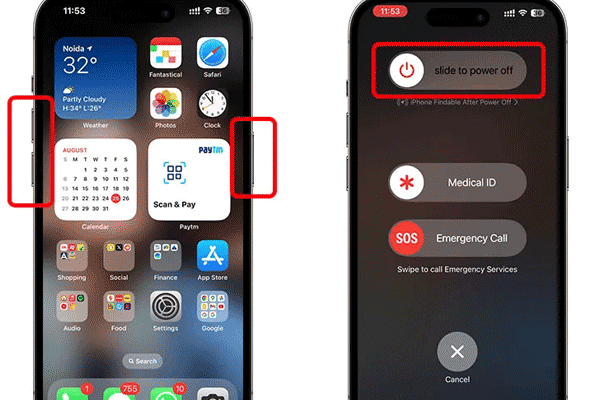
When the Apple logo on your phone appears, your phone will turn back on. Well, this simple method works on most modern iPhone models and is the easy solution to restart your iPhone when the phone is slow or apps are not working properly.
Why do you need to restart your iPhone?
According to Apple Inc.’s instructions, restarting the iPhone is a common troubleshooting method. Hence, this refreshes the system and often fixes temporary software problems without losing data. Therefore, most people try restarting their iPhone first in case of any problem.
Get parenting tools that match the moment.
- Frozen screen: Firstly, when your iPhone screen suddenly stops working. For example, when you tap or swipe on the screen, but the phone does not work or respond properly. At such a time, if you restart your iPhone, the system refreshes and the screen starts working properly again.
- Slow performance: Next, when your phone is working become slow, and apps take a long time to open. Well, this usually happens when there are too many apps or processes running in the background. Therefore, when you restart your iPhone, these unnecessary processes are stopped, and the phone’s speed improves.
- Apps not responding: Then, sometimes an app suddenly freezes or does not work properly. For example, the app opens, but no action occurs even when you press a button. Thus, if you restart your iPhone, the app processes are restarted, and often the problem is solved.
- Network connection problems: Also, your iPhone can have problems connecting to Wi-Fi or mobile data. Restarting your iPhone refreshes the network system, and the connection may start working properly again.
How to restart my iPhone by model?
The restarting method of all iPhones is not the same. Every model has its own layout and design. Newer phones (iPhone X and later) have Face ID. If we talk about older phones, they have a Home button. Let’s discuss.
How to force restart iPhone X, XR, XS, 11, 12, 13, 14, and 15 series (Face ID models)?
These models do not have a Home button. It requires a combination of buttons to restart.
- Step 1. First, press the volume up button and then release it.
- Step 2. Now, press the Volume down button and then release it.
- Step 3. Now, you have to press and hold the side button. Wait for the Apple logo to appear on the screen.
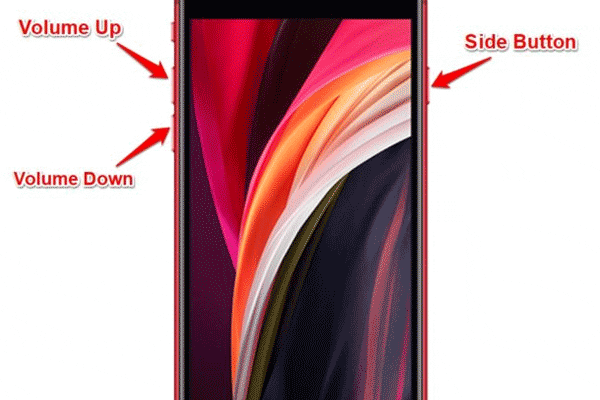
How to force restart iPhone 8, iPhone 8 Plus, and iPhone SE (2nd & 3rd generation)?
iPhone 8, 8 Plus, and 2nd and 3rd generations also do not have a Home Button. To restart;
- Step 1. Press the volume up button and release it.
- Step 2. Next, press and release the Volume Down button.
- Step 3. Now, just press the Side button until the Apple logo appears.
How to force restart iPhone 7 and iPhone 7 Plus?
Additionally, the Home button on the iPhone 7 series is non-mechanical, so the restart method is different. According to Apple, it is used to fix frozen screens or unresponsive apps. Well, the system refreshes, and data is preserved without loss.
- Step 1. Firstly, press and hold both the Volume Down and Side buttons at the same time.
- Step 2. Wait for the Apple logo to appear.
How to force restart iPhone 6s, iPhone 6s Plus, iPhone 6, iPhone 6 Plus, and iPhone SE (1st generation)?
Well, the older iPhones have a physical Home button. So, the method of restarting will be a bit different from the new phones. You can fix freezing, slow apps, or minor glitches.
- Step 1. First, press and hold the Side (or Top) button and Home button at the same time.
- Step 2. Hold until the Apple logo appears.
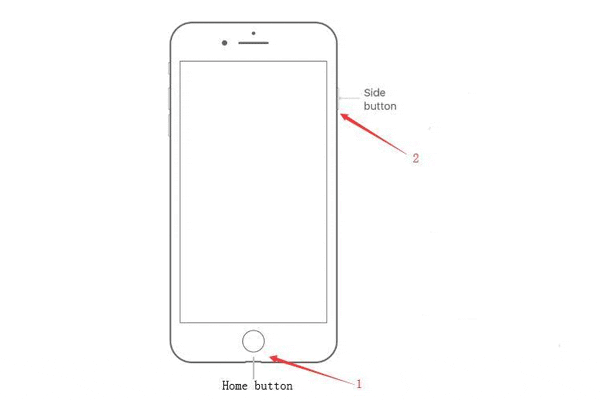
Restarting your iPhone without the power button
Well, the power button is not necessary to restart the iPhone; you can also restart the phone using Assistive Touch or the Settings menu.
→ Using Assistive Touch:
- Step 1. Go to Settings > Accessibility.
- Step 2. Now tap on Touch and then AssistiveTouch.
- Step 3. Toggle on the Assistive (it will turn green).
- Step 4. A floating button appears on your screen.
- Step 5. Now, go to “Device”, then “More”, and then “Restart”.

→ Using the Settings menu:
- Step 1. Open your iPhone and go to Settings.
- Step 2. Scroll down the options and select Shut Down.
- Step 3. Here, turn off the power slider.
- Step 4. Now, the phone will shut down automatically. What you have to do is to press the side button and let the Apple logo appear on your screen.
What to do if your iPhone won’t restart?
As you know, sometimes your iPhone won’t restart normally. So, you do not need to panic, as there are some easy ways to get your phone back up and running. Follow the steps below one by one;
Steps to fix an iPhone that won’t restart:
- Check for software updates: If you have not updated your iOS version, your phone may not restart normally. To fix the issue, go to the Settings → General → Software Update. Well, when you update your phone’s system, it removes the bugs and helps your iPhone run smoothly.
- Free up storage space: Another reason for the issue may be full storage of the iPhone. Yes, if you do not have enough space in your phone, the system may not work normally. So, go to the Settings → General → iPhone Storage and delete unnecessary apps or files.
- Delete problematic apps: Some apps may be harmful to your iPhone. They can crash or freeze the system. Therefore, it is better to delete recently installed or faulty apps. So, doing this will restart your phone and reduce system issues.
- Reset all settings (without erasing data): Sometimes a problem with the settings can be the reason for not restarting.
- Restore from a backup: Next, if the software has become corrupt, restoring a backup can be helpful. Restore a backup from iCloud or iTunes. Hopefully, the system will come back to its normal state.
- Contact Apple Support: Okay, if the above-described methods don’t work for you, you can contact Apple Support. Apple Inc. This is the final safest solution when you do not find any other solution.
How can parents manage kids’ iPhone usage?
Nowadays, children use smartphones a lot. That is why it is important for parents to know how to manage their children’s iPhone usage. Although Apple provides its users a built-in screen time feature that parents can use to control phone usage.
But if parents want a specific system that is specifically built for parenting, they can use the FlashGet Kids app. Flashget Kid is an advanced parental control app that allows you to monitor your kids’ online activities 24/7. You can set screen time, block harmful apps, and set specific keywords that you do want to see on your kid’s phone.
Conclusion
Well, restarting your iPhone is not a big deal. It refreshes your phone’s system, removes bugs and viruses, and fixes other minor problems. You can do it yourself in a few seconds. Therefore, by following the above-described methods and step-by-step instructions, you can restart any model of your iPhone easily.
FAQs
It is good if you restart your phone every few days or at least once a week. Restarting helps refresh the system of your phone.
No, restraining is just turning your phone off and then turning it on. Resetting the phone means changing its settings and erasing the data.
No, restarting your iPhone doesn’t harm your data. It only turns your phone off and then on.



