


You might have heard of FlipaClip from your kids and are wondering what this is and whether it is safe to use for kids. You don’t worry, we’ve got you covered! FlipaClip is an animation or video-making software that wins over its user-friendly interface and simple controls, which are popular among beginners and kids.
In this article, we’ll discuss in detail FlipaClip, including its features, common use cases, and a step-by-step guide to creating your first project. We’ll also discuss whether it’s free to use and weigh both its positive and negative sides for a better evaluation. You’ll also find troubleshooting tips to enhance apps’ performance on different devices!
What is FlipaClip?
FlipaClip is a 2D animation application that lets users create short cartoons, animated memes, social media clips, or more. It’s worth noting that this software was developed by the three Meson brothers of Miami-based company Visual Blasters LLC in 2012, mainly for Android devices. Later on in March 2017, the company made this app available for download on iOS devices too.

This app is widely used by young artists or hobbyists, especially students, because it lets them create animated presentations and even educational projects in a simple & engaging way. That’s only possible owing to its user-friendly interface, which allows such beginners to experiment with animation with no prior experience.
It also enables young users to share their creative work on different social media platforms that help them connect with broader creative communities. Because of such accessibility, this app has 50M+ downloads and an overall 4.5-star rating out of 5 on the Google Play Store.
Key features of FlipaClip
Despite being user-friendly, FlipaClip indeed combines a lot of animation tools that help young users transform their ideas into reality. Let’s have a look at some features for better understanding!
- Frame-by-Frame timeline: First of all, users can create an animation by showing a series of drawings one after the other. This indeed gives users full control over scene transitions/character movement, making it easier to produce realistic animations.
- Drawing tools: On the FlipaClip app, users will find many drawing tools like brushes, pencils, pens, erasers, and fill tools.
- Layers for better organization: In addition, it lets users create multiple layers; this way, they can separately edit and organize characters, movements, or effects.
Is FlipaClip free?
Indeed, yes, FlipaClip is absolutely free to download and use on mobile devices. Honestly speaking, it operated on a freemium model, which means advanced features are locked behind a paywall. With the free model, you can create animations, but have access to just basic features. Below is the table comparing both the free and FlipaClip Plus versions!
| FlipaClip | FlipaClip Plus | |
| Cost | Free | $5.99/month; $29.99/year |
| Features | Basic drawing tools Limited layers Voice recording and basic audio support Stylus compatibility GIF and MP4 export options Project saving and editing | Basic features + Extra premium brushes Up to 10 layers Audio importing Watermark removal Ad-free experience Advanced export options Additional animation tools and customization features |
| Best For | Beginners, students & casual | Frequent animators & users who need advanced creative tools |
It’s noteworthy that when you search online for FlipaClip premium version, you’ll come across terms such as “FlipaClip Unlocker,” “FlipaClip Premium APK,” or “FlipaClip Mod APK. Be aware of them, as these are the methods claiming to unlock the premium version free of cost. However, upon downloading such modifications or unofficial versions, you might get exposed to malware risks, device data security, or other privacy concerns.
To upgrade to the premium version, you must visit its official website or purchase subscriptions directly within the official app.
Is FlipaClip suitable for kids to use?
Overall, FlipaClip is considered suitable to be used by kids because its sole purpose is to let users create their own work rather than consuming simple videos. This promotes creativity and helps them develop storytelling skills or creative thinking.
Common Sense Media platform has also reviewed this software and appreciated it for its ease of play and educational value. However, it gives it a 9+ rating based on parents’ and kids’ reviews. Let’s have a close look at such concerns for parents for better decisions!
- In-App purchases: As discussed earlier, FlipaClip comes with an upgrade or subscription option. It’s more likely that kids might make purchases without letting their parents know.
- Community sharing features: Since users can share their artwork online, it exposes them to unwanted interactions that require parental guidance.
- Exposure to user-generated content: While searching for FlipaClip content online, users may join online communities sharing their artwork. Remember! User-generated content varies in quality and appropriateness, and explicit art negatively impacts the young minds.
How parents can keep kids safe while using FlipaClip?
Although FlipaClip is a creative animation app, given the above-mentioned concerns, it’s important for parents to take steps to ensure its safe use. Let’s have a close look at what strategies you can adopt to create a safe & healthy digital exploration for kids.
Use device-level parental controls
Whether you’re an Android or iOS user, both come with built-in parental control features. Parents first make use of them to manage screen time, restrict downloads, and app purchases.
Limit screen time and encourage balance
No doubt FlipaClip is a productive task, but you still need to maintain a balance between online and offline activities. Set clear rules on how much time they can spend on such software so it does not interfere with sleep, schoolwork, or family time.
Supervise sharing and public uploads
Many kids find it interesting to share their work on social media platforms. However, parents need to carefully review the privacy settings before such public uploads and ensure they are aware of digital safety.
Teach safe sharing practices
Make your kids aware that they should never share their personal information in usernames or profiles. Plus, tell them to avoid sharing full names or home or school addresses online to prevent interactions with strangers.
Use family safety tools for additional support
On top of that, you can make use of third-party parenting monitoring tools for additional support. Happy to share that FlashGet Kids has superseded all other apps for its real-time monitoring features. For instnace;
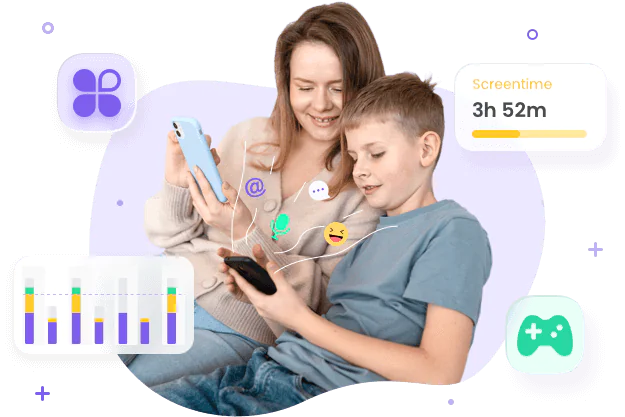
Set limits, block risky apps, and watch healthy habits grow.
- App blocker: Lets you block age-inappropriate apps on kids’ devices, and even if they try to access any newly downloaded app, you’ll get an instant alert.
- Screen time management: Allows parents to set time limitations on kids’ device usage, such as blocking this FlipaClip for specific hours. If kids try to bypass the restrictions, you’ll get notified in no time.
- Notification tracker: Using this app, parents can sync notifications from kids’ devices on their own. This way, they can monitor app-related notifications and activities.
Step-by-step: How to animate in FlipaClip
Now, if you’re a beginner and want to create your first animation, you might be wondering how you can efficiently deploy this tool. Stay calm, we’re here to help you. In this section, we’ll share detailed step-by-step guidelines to help you with your first project.
Project setup
First of all, you’ll open the FlipaClip and tap the + button to start your project. After this, you’ll configure the following project settings!
- Choose a canvas size: Choose your animation resolution based on where you plan to share the animation. If it’s for YouTube or other social media platforms, then 1080p works well.
- Set the FPS (Frames Per Second): Next, you’ll set FPS, which determines how smooth the animation appears. For your convenience, if you’re a beginner, you’ll start with 12 FPS, while 24 FPS creates more fluid motion.
- Create layers: Also, organize your project by placing characters, backgrounds, and effects on separate layers.
Basic workflow
Once all your settings are complete, you’ll be ready to start your animation frame by frame.
- Sketch your main idea: Now, take a start by drawing rough sketches of your animation poses or movements to avoid mistakes.
- Use onion skinning: After this, enable the onion skin feature to see faded versions of nearby frames. Doing this helps you understand how objects should move between frames.
- Draw additional frames: Next, add new frames > slightly adjust the position of your character or object in each one.
- Manage frames efficiently: You can also use the frame manager to insert, duplicate, move or delete frames as needed.
- Preview your animation: Play back your animation to check its timing and movement. If you think something isn’t okay, you can add or remove frames to improve the flow.
Exporting and sharing
Once everything is ready, the last step is to export or share your artwork with others.
Choose the right export format
- MP4: Best for YouTube, TikTok, Instagram & most social media platforms.
- GIF: Ideal for short looping animations & memes.
Save your project files
Before exporting, make sure to save your project to keep the original file to return later and make edits without starting from scratch.
Back up important projects
It’s also wise to back up your project to cloud storage or another device to avoid losing your work.
FlipaClip tips and advanced tricks
Once you become an expert with the basic use of FlipaClip, then using it might seem boring, right? No more, here are a few advanced techniques that you must learn and practice to refresh your experience!
- Speed up your workflow: When you create animations frame by frame, it truly takes time. To save time, you can use the frame duplication feature
- Experiment with different brushes: There are a variety of brushes that you can find on FlipaClip software, each serving a different purpose. Try experimenting with all to find the one that truly matches your project.
- Use reference layers: Likewise, you must use a reference image on a separate layer whenever trying to create complex animations. This way, you can create consistent character proportions throughout animations.
- Learn basic lip-sync techniques: If you’re thinking of creating an animation with dialogues, it’s best to use the lip-syncing feature to add a real touch.
- Improve animations with rotoscoping: You can also go for rotoscoping to trace movements from photos/videos frame by frame. However, this feature is just used for reference or learning.
Classroom project ideas using FlipaClip
If you’re a student, then you can use FlipaClipto to create excellent educational projects. Here are some project ideas just for reference!
- Create animated science demonstrations.
- Explain historical events through short cartoons.
- Design book summaries & story retellings.
- Produce educational presentations.
- Develop visual storytelling & art projects.
Family activity ideas using FlipaClip
Even families can have fun using FlipacLip by creating the following fun tasks!
- Making animated birthday cards
- Creating a family cartoon
- Designing holiday-themed animations
- Producing short stories with original characters
- Collaborating on simple stop-motion-inspired projects
Trending creative uses of FlipaClip
Today, many content creators use FlipaClip for more than traditional cartoons. For instance, by deploying this tool, they can do the following!
- Short animated GIFs
- Instagram Reels and TikTok animations
- YouTube intro sequences
- Animated memes
- Educational explainer videos
- Digital storytelling projects
FAQs about FlipaClip
Absolutely, yes, you can use FlipaClip on Mac or any other iOS device to create or edit your animations.
To move the frame in FlipaClip, you’ll simply open the frame viewer or timeline and then hold the frame you want to move. Now you’ll just drag it into the desired position, that’s all!
To add music in FlipaClip, you’ll open your project and go to the audio option there. This will show the option to import an audio file from a device or record your own. After adding audio, it automatically aligned with the animation frames.
Smooth animations in FlipaClip largely depend on having enough frames, which you can do by increasing the FPS settings. Likewise, you can adjust onion skinning to make consistent movements.
Well! The animation that you create with the free version usually has a watermark. To remove this, you need to upgrade to FlipaClp Plus or purchase the watermark removal option if available.
Troubleshooting and performance tips
Just like any other software, FlipaClip can also undergo performance issues, especially while working on large projects. Luckily, you can resolve issues with a few adjustments as mentioned below!
Improving performance on PC and Mac
If you use FlipaClip on PC and Mac, you can boost the app’s performance by trying out the following fixes!
- You need to increase the emulator’s RAM if you find animations feel slow.
- You can also enable GPU acceleration to improve rendering performance.
- It’s also a best practice to close unnecessary apps running in the background.
- Always make sure to keep your device iOS and the FlipaClip itself updated.
Improving performance on mobile devices
On the other hand, if you’re using mobile devices, then you can do the following tactic for boosting FlipaClipmapp performance!
- First of all, before opening FlipaClip, close background apps.
- Make sure to clear the app cache on a regular basis to free up temporary storage.
- Double-check that sufficient free storage is available on the device.
- If the app becomes unresponsive, you need to restart the device.
What to do if FlipaClip crashes?
If your FlipaClip app crashes occasionally, then there might be insufficient memory, outdated software, or project complexity. To fix this issue, try following these tips!
- Reopen the app & check whether the project was automatically saved.
- Update FlipaClip to the latest version.
- Restart the device.
Fixing missing audio issues
For audio issues on FlipaClip, instead of panicking, take a deep breath and go for the tips below!
- Double-check that the device volume is turned on.
- Check whether the audio track was imported successfully.
- Make sure the audio file format is supported.
- Restart the app & reopen the project.
- Re-import the audio file if synchronization issues occur.
Recovering corrupt or damaged projects
Sometimes your projects can become corrupted, mainly because of storage issues or interrupted saves. The tricks mentioned below might help you resolve the issue!
- Check for backup versions or cloud-saved copies of the project.
- Avoid force-closing the app while a project is saving.
- Export completed projects regularly as a backup.
- Save multiple versions of important animations during development.
Conclusion
In a nutshell, FlipaClip is considered a beginner-friendly animation tool that students and even families can use to create fun projects. Although using this app is quite easy, you still need to be aware of common tactics like the use of brushes, adjusting resolutions, or other features for smooth creations. For parents, we would recommend installing FlashGet Kids to closely monitor how they use this app. Using this parenting tool, you can manage their screen time, track app notifications, or more to make sure they remain safe while online.



